
Download a reference report
- Navigate to the project where the candidate is located.
- Open the candidate and click View Report.
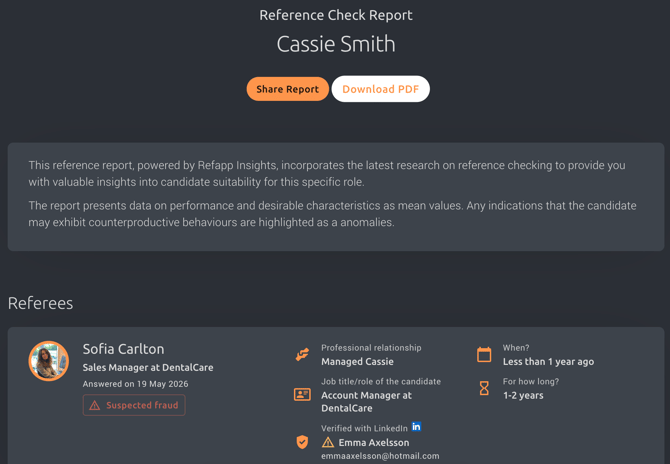
- Click Download PDF at the top of the report.
- Choose your preferred report settings, such as:
- Language
- Whether to anonymise the report
- Whether to require a password to open the PDF
- Report type: If you'd like to display Refapp warnings such as suspected fraud, in the report.
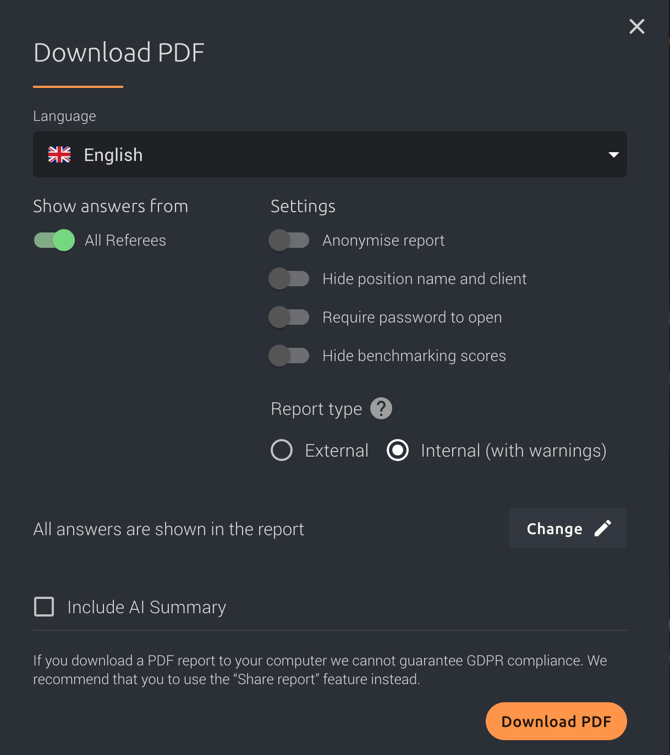
- Click Download PDF to generate and download the report.
Tip: Whenever possible, we recommend using the Share Report feature instead of downloading a PDF. Shared reports remain securely stored in Refapp, making access management easier and helping you maintain GDPR compliance.
Can't see the "Download PDF" option?
If the Download PDF button is missing, it's usually because you haven't been added as a user to the project.
If you have Administrator permissions, you can add yourself as a user to the project and then download the PDF.
For step-by-step instructions, see: How do I add colleagues to a project in Refapp?
Once you've been added as a project user, the Download PDF option will become available, if not please contact support@refapp.com for further assistance.