
This guide shows you how to set up, start, and review a background check in just a few steps.
1. Create a new project
-
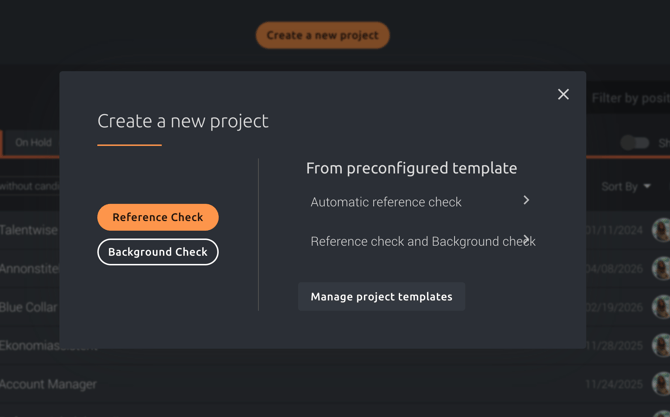
Select “Create a new project” in Refapp.
-
Choose the project type Background Check, or use a pre-configured template if available.
2. Configure the background check
-
Enter a title for the role/check (e.g. Regional Manager).
Keep in mind that the title will be visible to the candidate unless you select the option “Hide job title”.
-
Scroll down to the Background Checks section.
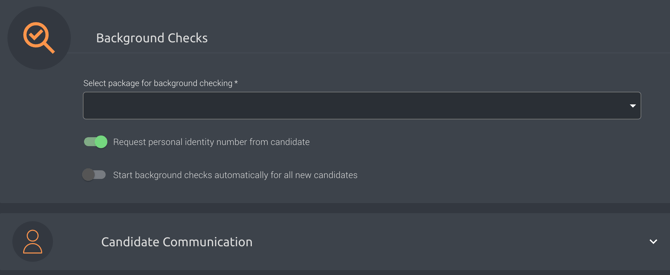
Here, you can:
- Select a package for the check
- Choose whether to request the personal identity number from the candidate
- Choose whether to start the check automatically when the candidate is added
💡 Tip:
Requesting the personal identity number from the candidate is recommended, as it enables identity verification (e.g. via BankID). Entering it manually is faster, but does not include verification.
Adjust the settings using the toggles and click Create.
3. Add a candidate
-
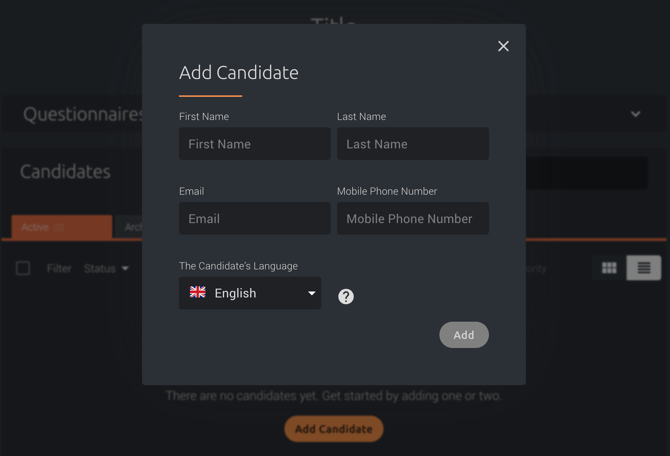
Select Add candidate and fill in the candidate’s details.
-
Click Add when you’re done.
4. Start the background check
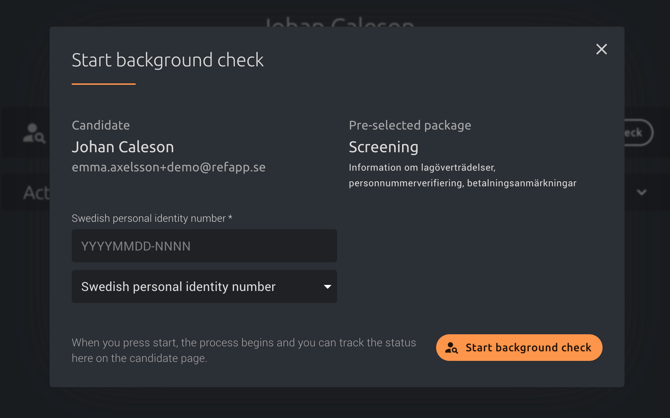
Go to the candidate’s profile and select Start background check.
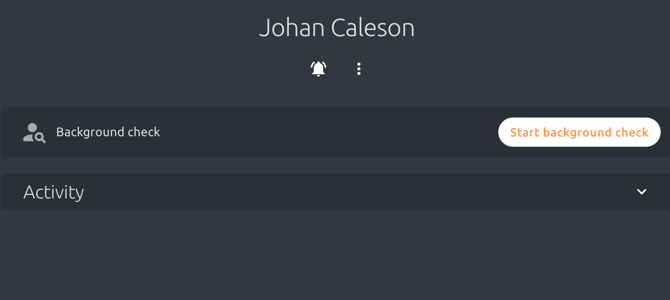
- If you chose not to request the personal identity number, you’ll need to enter it manually to start the check.
- If you chose to request it, the candidate will receive an email and SMS prompting them to verify their identity (e.g. via BankID). The check starts automatically after verification.
-
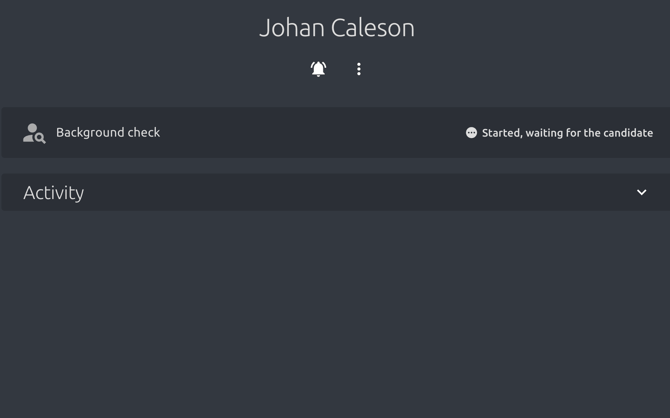
Once the check has started, the candidate status will be Background check in progress.
5. Review the results
When the background check is complete, you’ll receive a notification email with a direct link to the candidate’s profile, where you can view and act on the results.
You’ll see one of the following results:
- Approved according to filter
- Not approved according to filter
- Needs review
If the result is Needs review, it means that some information requires attention, such as active business engagements, or a name change. It does not necessarily indicate any issues.
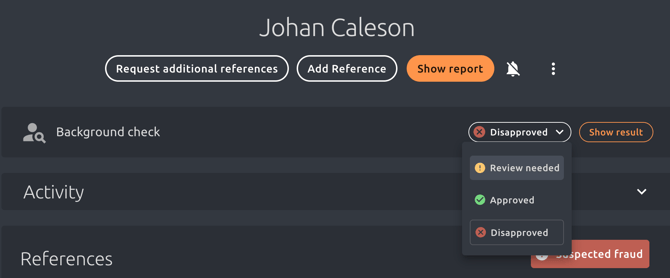
After reviewing the report, you can update the result to:
- Approved
- Not approved
Team members without permission to view reports can still see the candidate's status, but cannot access the report itself.
Need help?
For more details about result statuses or your specific background check setup, contact support@refapp.se.