
Tip: If you want to share a questionnaire digitally with someone who does not have a Refapp account, we recommend using a preview link instead. This allows the recipient to view the questionnaire directly in their browser without needing access to Refapp.
But if you need to save a questionnaire as pdf, this is how you do it:
1. Go to your Questionnaire
In Refapp, go to your questionnaire either in the project, or your shared templates in Forms.
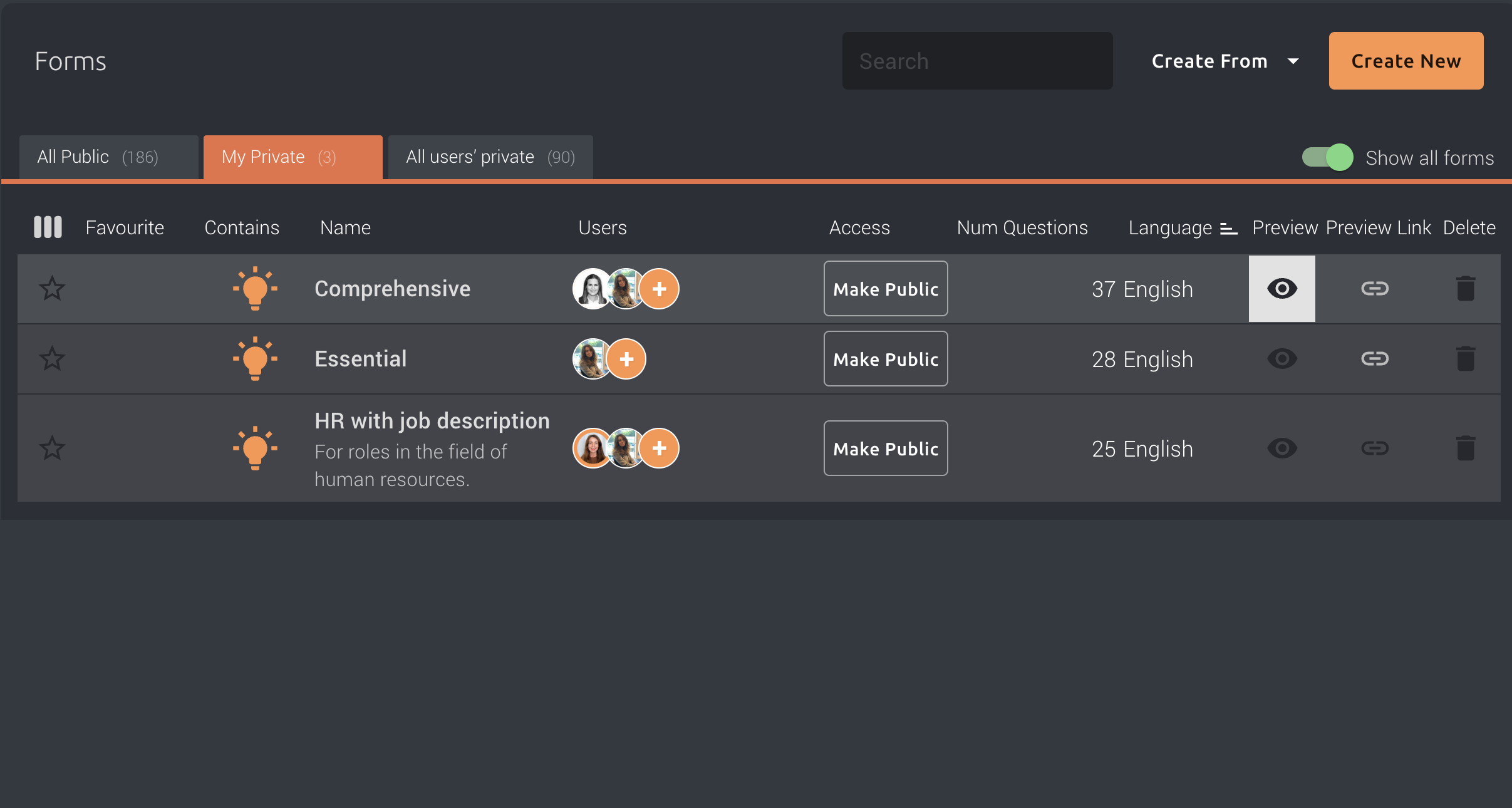
If you're an administrator, you'll see three sections in Forms.
- All public: Shows all forms templates that are shared between the administrations/organisations.
- My private: Shows the form templates you have created and saved as private.
- All private: Shows private form templates created by users.
Find the questionnaire you want to download, select Preview.
2. Open the browser's print function
When the questionnaire is open in preview, open your browser's print function.
You can usually do this by:
- Selecting Print from your browser's menu, or
- Using Ctrl + P on Windows
- Using Cmd + P on Mac
3. Save as PDF
In the print dialog, select Save as PDF as the destination/printer.
Then select Save and choose where you want to save the PDF.
The questionnaire will now be saved as a PDF that you can share or store outside of Refapp.
Want to share the questionnaire digitally?
If the recipient does not need a PDF specifically, you can instead create a preview link and share it with them. This is often a more convenient way to share a questionnaire with someone who is not a Refapp user.
See How do I share a preview of a questionnaire with someone who is not a Refapp user? for instructions.