
To activate this feature, contact Refapp support and specify whether you want to activate Google, Microsoft 365, or both.
Once activated, click on your profile in the top right corner and select My Refapp. Under the My Calendar tab, you can connect your calendar to Google or Microsoft 365, depending on your email provider.
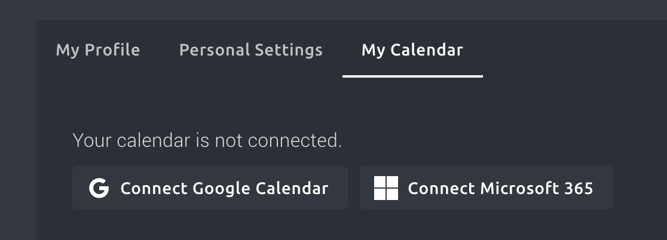
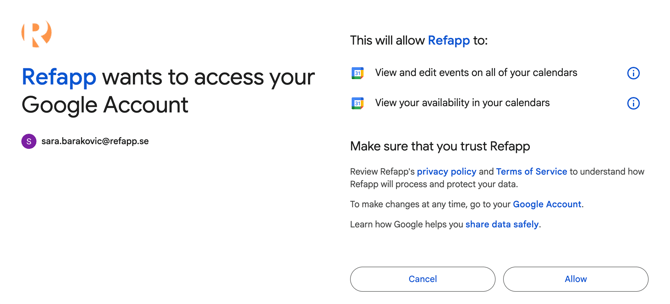
You will then be redirected to the connection page for each system to approve the connection.
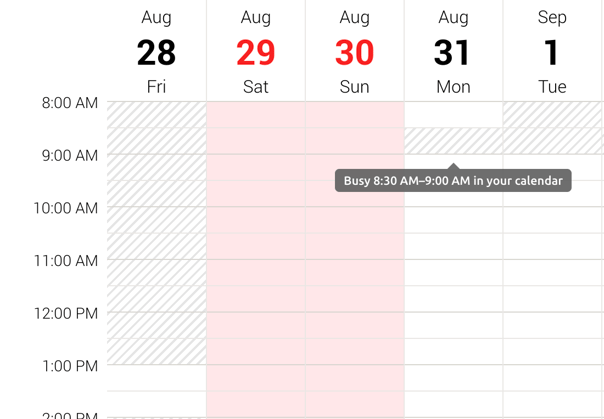
Once you have connected your calendar, the calendar in Refapp will reflect the meetings/bookings you have in your calendar, and the times that are busy in your calendar will therefore not be available for references to select as suggested times for reference calls.
If you have sent proposed times to references via Refapp, they will appear in your work calendar as reservations for reference calls.
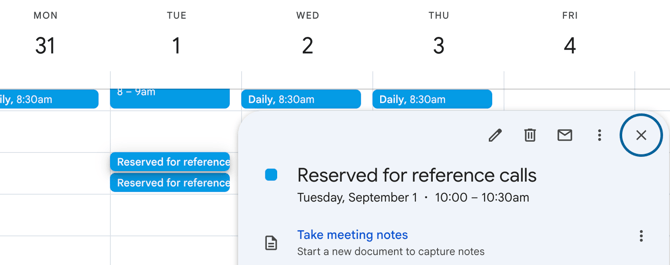
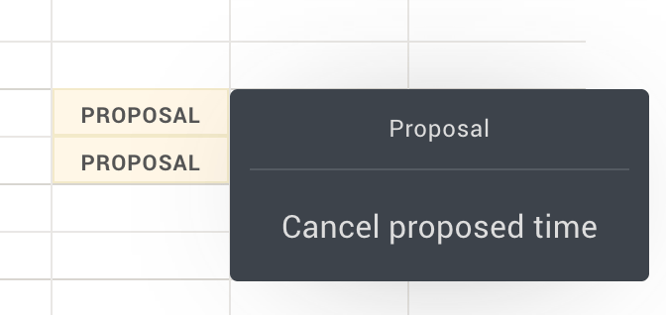
To remove a reserved time from your calendar, you can click the link in the calendar event or go to My Calendar in Refapp. From there, click on the suggested time and select 'Delete proposed time'. Note that there must be at least 3 proposed times remaining in the calendar if you have an active reference call request with a reference.
If you wish to disconnect the calendar from Refapp, click Disconnect, and the connection will be removed immediately.