Using Refapp standalone
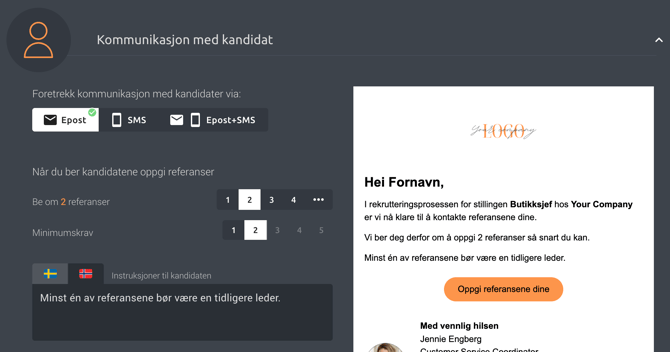
You can add custom candidate instructions — additional text that appears in the email sent to candidates — and tailor it for each project. Go to the project settings and the Communication with candidates section. Enter your additional text in the box. You can immediately see a preview of what the email will look like.
Using Refapp via a recruitment system
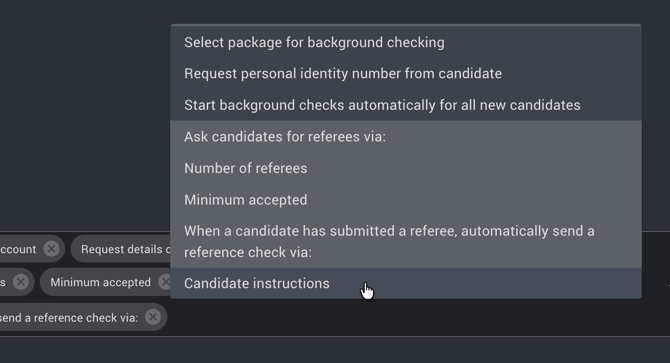
To make this field visible in your recruitment system, go to Company Settings and the Integrations tab. In the Settings panel that appears for your ATS integration, enable the Candidate instructions option.
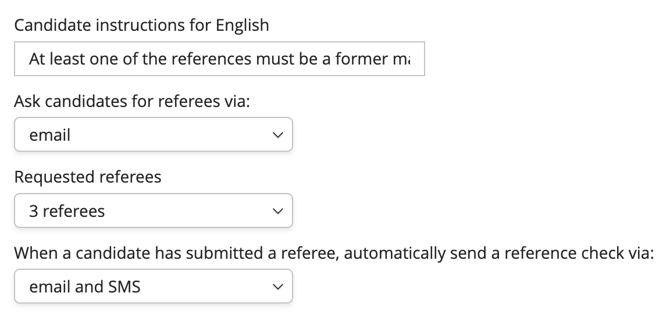
A field for candidate instructions will then appear in your recruitment system for each language enabled on your account. Fill in the additional text you want to include in communications with the candidate.
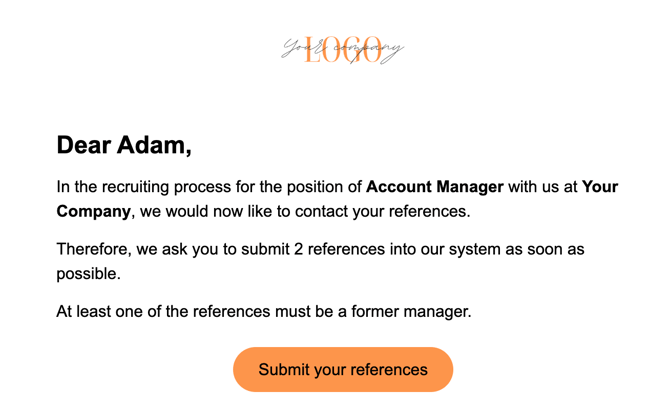
Once the email is sent to the candidate, the custom instructions text you entered will appear in the email body.