
Companion to Setting up SCIM provisioning with Microsoft Entra ID and the supported API surface.
Refapp's SCIM API authenticates with a static bearer token that you generate in Refapp. There is no OAuth token endpoint, no client id and secret, and no token exchange — whatever your identity provider offers, the only supported scheme is Authorization: Bearer <token>.
Two values are needed to connect an identity provider, and this page is about both:
| Tenant URL | Which Refapp company to provision into |
| Secret token | Proof that you are allowed to |
The tenant URL
<your Refapp address>/scim/v2/<your company id>
For example, https://app.refapp.com/scim/v2/aBcDeFgH12345.
Two parts of that are easy to get wrong:
- The host is the one you sign in to. Refapp runs several independent environments, and a company exists on exactly one of them. If your organisation has its own Refapp address, the tenant URL uses that address, not the default one.
- The company id is yours specifically, not an account-wide value. It is the same id that appears in the SAML entity id you configured for single sign-on.
You do not have to assemble this by hand. Refapp shows you the complete tenant URL, with a copy button, under Company settings → API tokens — the same page where you generate the token.
One Enterprise Application per company
An Entra Enterprise Application stores one tenant URL. Since the tenant URL names a single company on a single Refapp environment, one application provisions one company.
For almost everyone that is the whole story. You need more than one application only if you have more than one Refapp company to provision — for instance a company on two different Refapp environments, or two separate companies on the same one. Those applications are fully independent: separate tokens, separate assignments, separate attribute mappings. There is no way to point a single application at two tenant URLs.
Generating a token
Tokens are managed by your company administrators, under Company settings → API tokens.
Before that tab appears, Refapp has to enable SCIM configuration for your company — that part is not self-service and, depending on your agreement, may require a licensing change. Contact support to have it switched on.
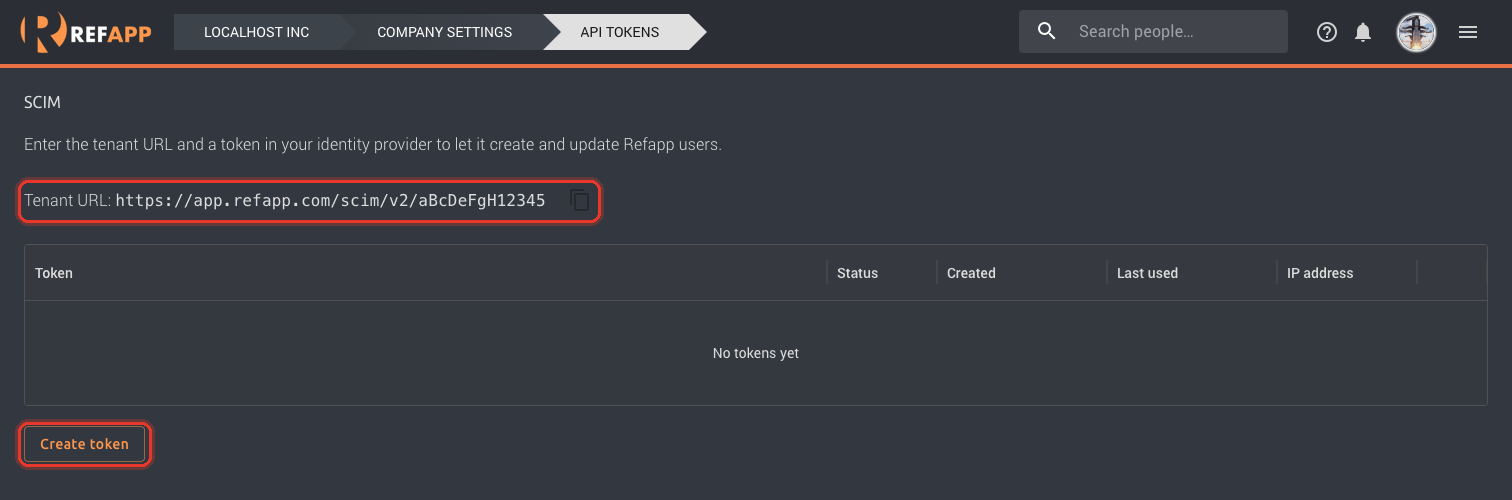
Click Create token.
⚠️ The token is shown once
Refapp stores only a hash of it and the first few characters, so it can never be shown to you again — not by you, and not by Refapp support. Copy it immediately and paste it straight into your identity provider, or into whatever secret store you use.
If you lose it, you cannot recover it. You revoke it and generate a new one.
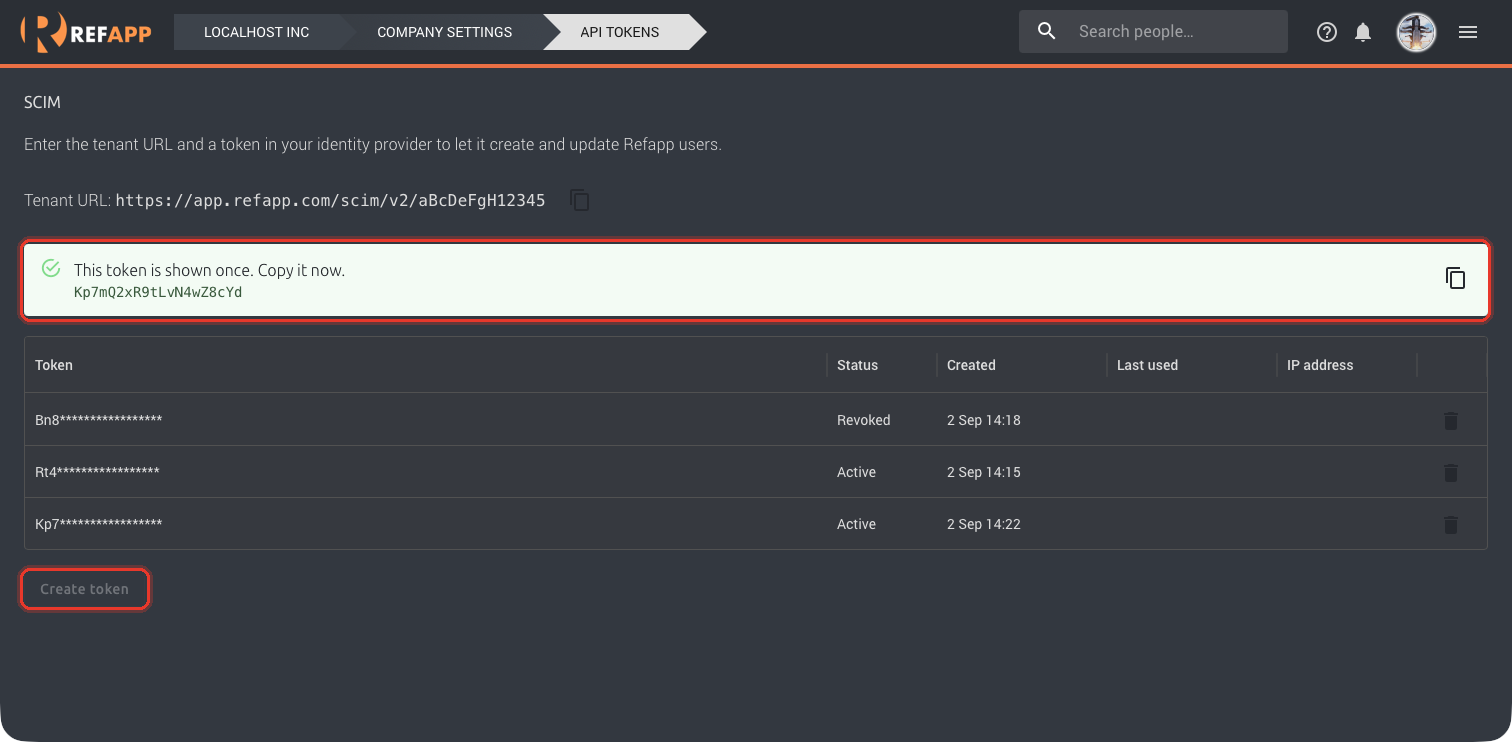
The list then shows each token by its first few characters, with Status, Created, Last used and IP address. Those last two are the quickest way to tell whether your identity provider is actually reaching Refapp: a token that has never been used means nothing has ever authenticated with it.
Notice that Create token is greyed out in the picture above. That is the two-token limit, and it is what makes the rotation below possible — see the next section.
Why token creation may be refused
Refapp will not issue a SCIM token for a company that does not have Use nameid-format:persistent switched on, under Company settings → Security. That setting is what makes a user's SSO identity stable, and without it a provisioned user could never be matched to the person who signs in — so a token would produce a working sync and a set of accounts nobody could log into.
It is a switch you control yourself, so if token creation is unavailable for this reason, turn it on and come back. It is a prerequisite, not a formality.
Rotating a token
Refapp lets you hold two active tokens at once, and that exists precisely so rotation does not need an outage. There is no in-place "rotate" — you add, then remove.
- Generate a second token. Both are now valid.
- Update the secret token in Entra on the Connectivity page, and click Test connection.
- Verify it is really the new one being used — the new token's last used timestamp should update.
- Revoke the old token.
Do not revoke first. A revoked token stops working immediately, and provisioning fails until the replacement is in place.
Because the limit is two, you must revoke the old one before you can rotate again.
Rotate promptly if a token is exposed — in a support ticket, a screenshot, a shared document, or a repository. A SCIM token can create, modify and deprovision users in your company. Revoking is instant and does not affect the other active token.
Troubleshooting a 401
Every authentication failure returns exactly the same response:
{"schemas":["urn:ietf:params:scim:api:messages:2.0:Error"],
 "status":"401","detail":"Bearer token is missing or not valid"}
This is deliberate. The response is identical whether the token is wrong, revoked, belongs to a different company, the company id does not exist, or SCIM is not enabled — so that nobody can use the endpoint to discover which companies exist or which have SCIM partly configured.
The cost is that the error cannot tell you which of those it was. Work through them in order:
- Did the token get truncated? By far the most common cause. Copying from a notification, a chat message or a terminal very easily drops the first or last character. Re-paste it, and check the leading characters against those shown in the token list.
- Is the token still active? Check the token list — it may have been revoked during a rotation that was not finished.
- Is the company id right, and on the right host? A valid token used against another company's tenant URL fails exactly like a bad token. Compare the URL against the one Refapp shows you.
- Is SCIM provisioning turned on for the company? A valid token against a company with provisioning switched off also returns this 401.
- Is it actually a SCIM URL? A misspelled path is not a SCIM route at all and returns an HTML page rather than JSON. If you got HTML, the path is wrong.
"A temporary internal storage issue in the Microsoft Azure AD service"
If Entra refuses to save your credentials with a message about a temporary internal storage issue in Azure AD, it is almost certainly not a Microsoft problem and not temporary. Entra reports a rejected token this way when it cannot complete its validation call. Treat it as a 401 and work through the list above.
By contrast, when Entra's Test connection fails it usually quotes Refapp's actual response, including the status code and body — that message is worth reading carefully, because it tells you what Refapp really said.