
The Harvest version provides Refapp with additional information from Greenhouse, including information about the candidate, job and recruiter initiating the reference check. It also allows candidates connected to the same job in Greenhouse to be placed in the same project in Refapp.
If you are using an earlier version of the Greenhouse integration, you can update to the Harvest version by following the steps below.
Important: The user performing the update must have admin access in both Refapp and Greenhouse.
Before you start
Make sure that you:
- Have admin access to Refapp.
- Have admin access to Greenhouse.
- Are logged in to the correct Greenhouse account.
The update does not disrupt your existing Greenhouse integration or your ongoing work in Refapp.
How to update your integration:
Step 1: Open integrations settings in Refapp
Log in to Refapp and navigate to Company Settings and the Integrations tab.
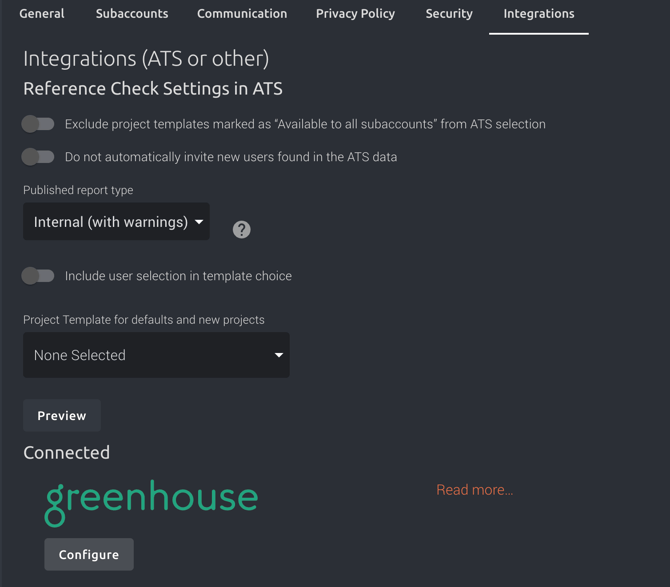 Scroll down until you find the Greenhouse integration. Click Configure.
Step 2: Connect with Greenhouse
A Greenhouse settings window will open. Click Connect with Greenhouse to start the authorization process.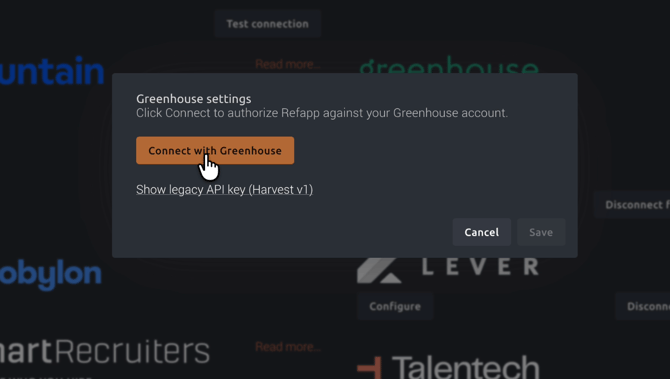
Note: You may also see an option called "Show legacy API key (Harvest v1)". Do not use this option when updating to the latest integration. The new connection uses the current OAuth-based Harvest version.
Step 3: Log in to Greenhouse
You will now be redirected to Greenhouse to authorize Refapp.
If you are not already logged in to Greenhouse, click Log in to Greenhouse and sign in using your Greenhouse admin account.
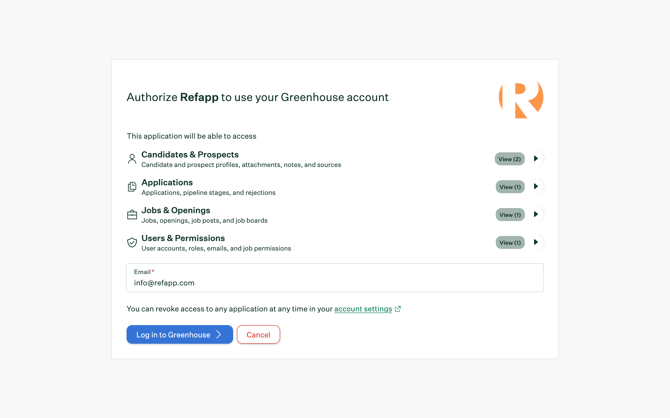 Once you are logged in, you will be taken to the authorization screen.
Step 4: Authorize Refapp
Greenhouse will show you the data that Refapp is requesting access to, including:
- Candidates & Prospects
- Applications
- Users & Permissions
Review the requested access and make sure you are logged in with the correct Greenhouse organization.
We recommend enabling Authorize using a service account. This associates the authorization with an organization-level service account rather than your personal Greenhouse user. Meaning that the integration is not dependent on an individual user's Greenhouse account.
Click Authorize.
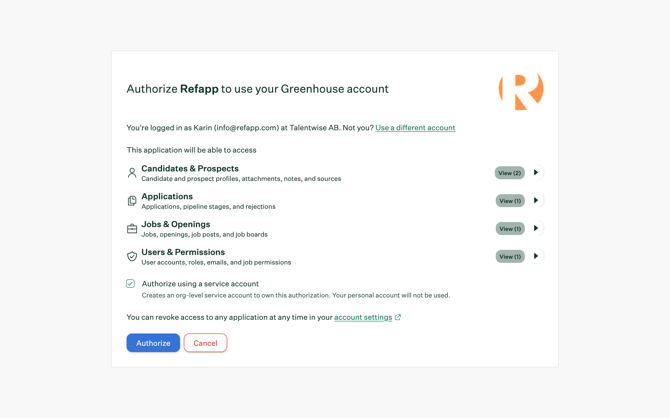
Step 5: Confirm the connection in Refapp
After authorizing Refapp in Greenhouse, you will be returned to Refapp.
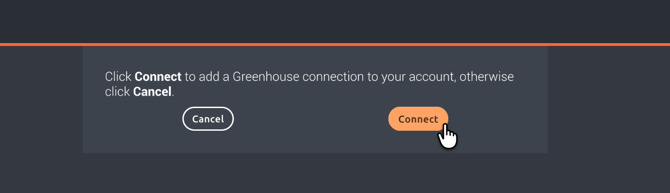
You will see a confirmation screen asking you to add the Greenhouse connection to your Refapp account.
Click Connect.
Once you've connected, you will be returned to the Integrations page in Refapp.
If you experience any issues, please contact the Refapp support team at support@refapp.com
For a detailed guide on how to use the Greenhouse integration, see How do I use the Greenhouse integration?