
Once you've reviewed your candidate's Insights report, you can easily share it with colleagues, hiring managers, or clients. You can also download the report as a PDF or choose to hide benchmark information before sharing.
Share an Insights report
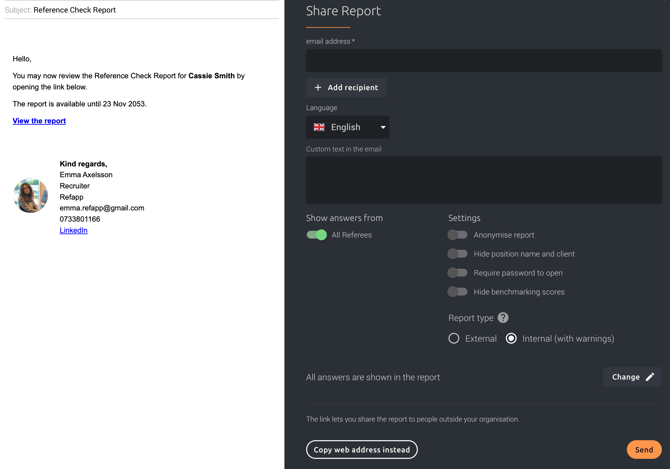
- Open the candidate's report.
- Click Share report.
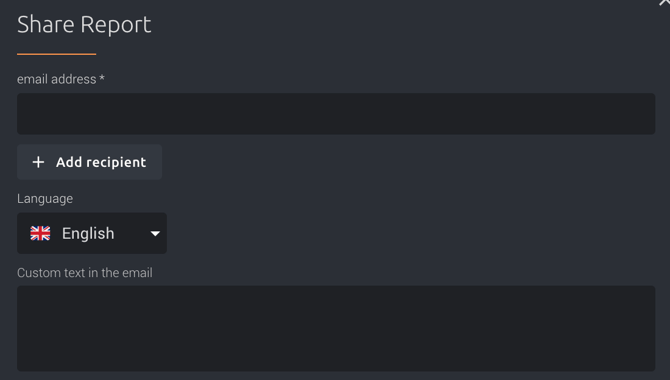
- Enter the recipients' email addresses.
- (Optional) Share a custom message to the email.
- Under Settings, choose what information to include.
- Click Send.
Recipients don't need a Refapp account. They'll receive access to the report through a secure sharing link.
Customize the shared report
Before sharing, you can choose how the report should be presented.
Available options include:
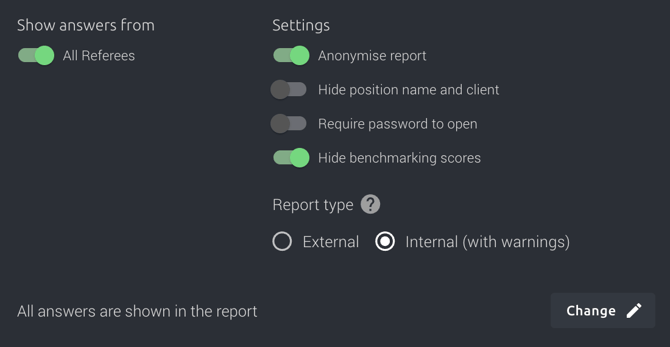
- Hide benchmark information
- Hide position name and client
- Require password to open
- Anonymize the report
This allows you to tailor the report depending on who you're sharing it with.
You can also choose if you'd like to include Refapp warnings in the report and if all answers should be shown.
Hide benchmark information
If you don't want benchmark comparisons to appear in the shared report, simply enable Hide benchmarking under Settings before sharing.
This only affects the shared version of the report. Your original report remains unchanged.
Share the report by link or email
Once you've configured the report, you can choose how you'd like to share it:
- Send: Sends the report directly to the recipient by email.
- Copy web address instead: Copies a secure sharing link that you can send through your preferred communication channel.

Download the report as a PDF
You can also download the report as a PDF for offline review or sharing.
- Open the report.
- Click Download PDF.
- Choose whether to include benchmark information.
- Download the PDF.
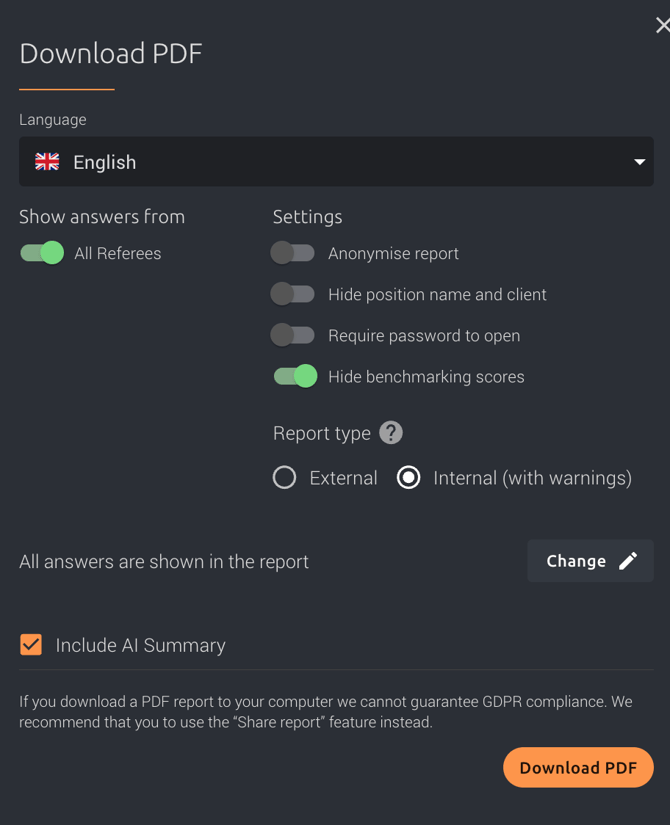
The PDF reflects the same sharing settings you've selected, including hidden benchmarks or anonymization if enabled.
Tip!💡 If you're sharing reports with clients or external stakeholders, consider hiding benchmark information to keep the focus on the candidate's reference responses and behavioural insights.
Need additional help? Feel free to contact Refapp Support at support@refapp.com