
In this article, you will learn about:
-
Integration settings
-
Automated settings
1. Configure background check for a job
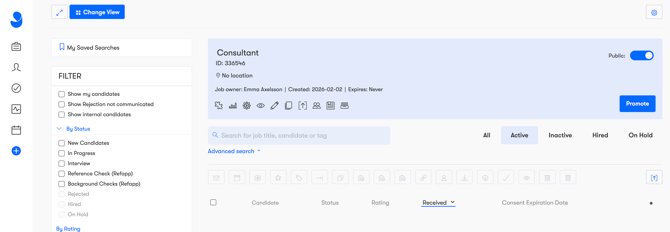
To be able to order background checks, you first need to activate and configure the integration for the specific job.
-
Go to the relevant job posting in Jobylon.
-
Click the puzzle icon (Integrations) in the menu.
-
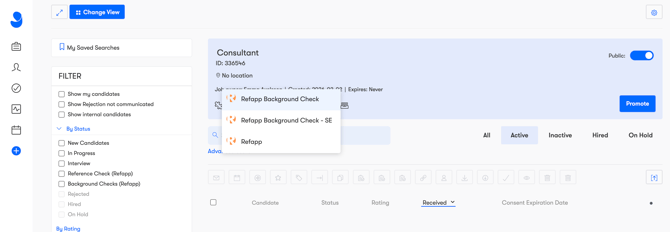
Select Refapp Background Check.
-
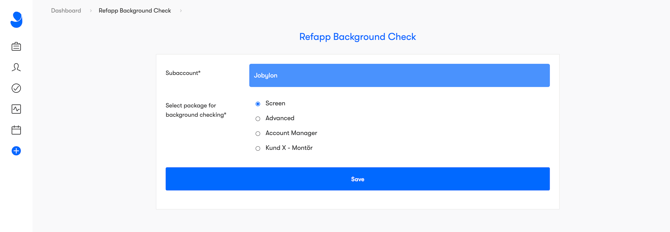
In the settings confiugration, select the correct Sub-account (only applicable if your organization has access to multiple Refapp accounts) and choose which background check package should be used for this position (e.g. Screen, Advanced, etc.).
-
Click Save.
💡The package selection determines which checks are included in the background check!
These settings can be linked to Job Templates in Jobylon if you want to ensure a standardized workflow.
2. Automate the Workflow with Pipeline Actions
With Pipeline Actions, you can automate both when a background check should start and what happens once the result is ready
2.1 Automatically send the candidate for a background check
-
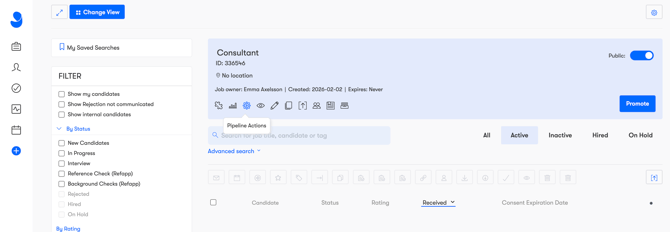
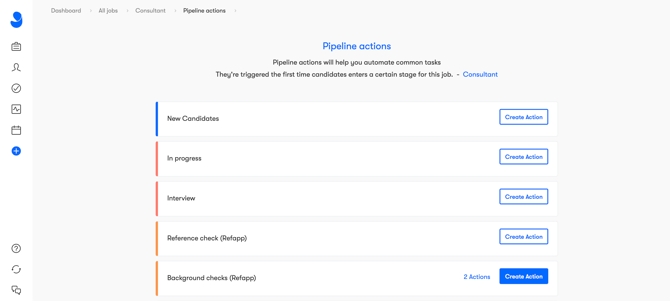
Click the gear icon (Pipeline Actions) in the job view.
-
Find the stage where the check should occur (e.g., "Background checks (Refapp)") and click Create Action.
-
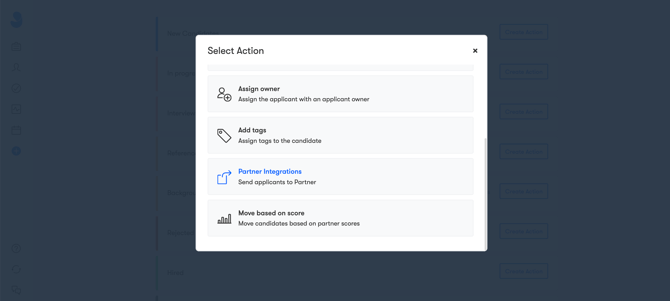
Select Partner Integrations.
-
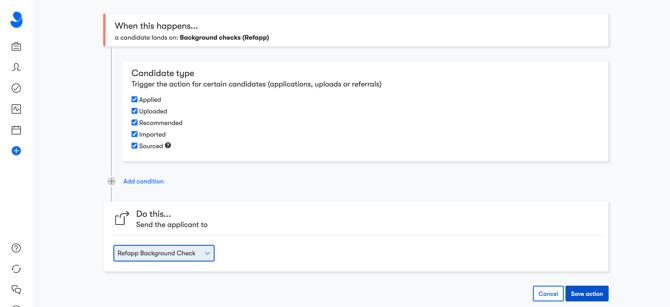
Under "Do this...", select Refapp Background Check.
-
Click Save action. The candidate will now be sent to Refapp automatically as soon as they are moved to this stage.
2.2 Automatically move the candidate based on results (Score)
You can also automate the next step for the candidate depending on whether the background check is approved or not.
-
Under Pipeline Actions, click Create Action again in the same stage.
-
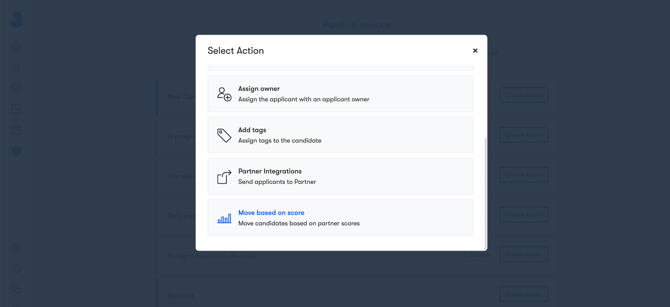
Select Move based on score.
-
Select Refapp Background Check as the source.
-
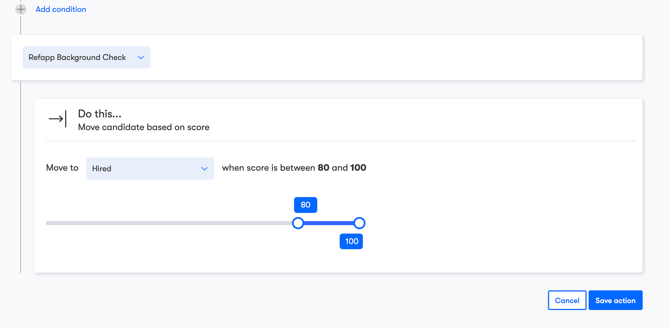
For approved checks: Set the candidate to move to, for example, "Hired" if the score is between 80 and 100.
-
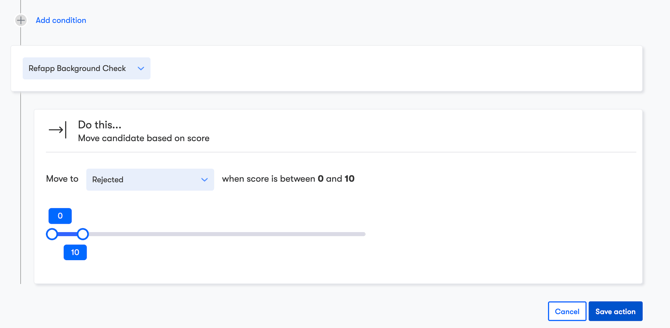
For non-approved checks: Create another action that moves the candidate to "Rejected" if the score is between 0 and 10.
-
Click Save action.
3. Activate the Background Check on a Candidate
To activate the background check, move the candidate to the process stage linked to Background checks (Refapp).
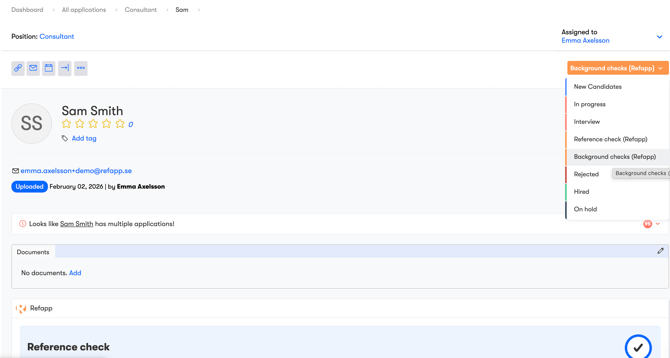
Note: Remember to inform the candidate that a background check will be conducted in accordance with your privacy policy.
You can also activate the integration "manually" by selecting the candidate and choosing the integration for "Refapp Background check." Read more in the Manual Handling section below.
4. How the Flow Works for the Candidate
När integrationen är aktiverad startar processen automatiskt när kandidaten når rätt steg i Jobylon.
Steg 1: Aktivering och godkännande
Once the integration is activated, the process starts automatically when the candidate reaches the designated stage in Jobylon.
-
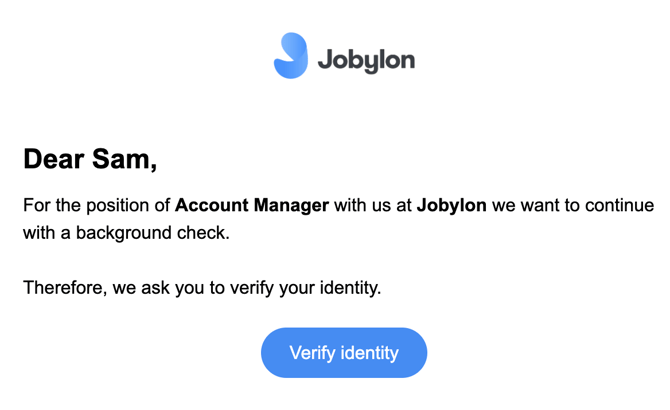
Candidate communication: The candidate receives an email and/or SMS informing them that you wish to proceed with a background check. Note that the appearance and text are customized based on your settings.
-
Verification: The candidate clicks the "Verify Identity" button in the email to consent to the check and authenticate themselves.
Step 2: Real-time Status Updates
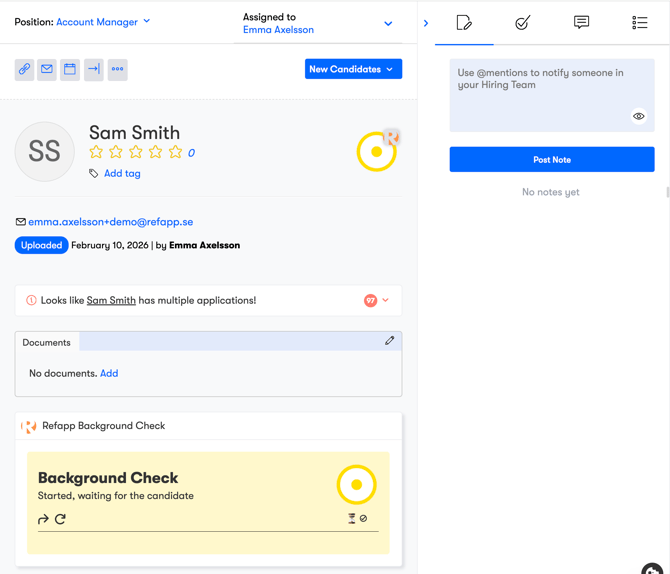
You can follow the process directly in the candidate view in Jobylon.
-
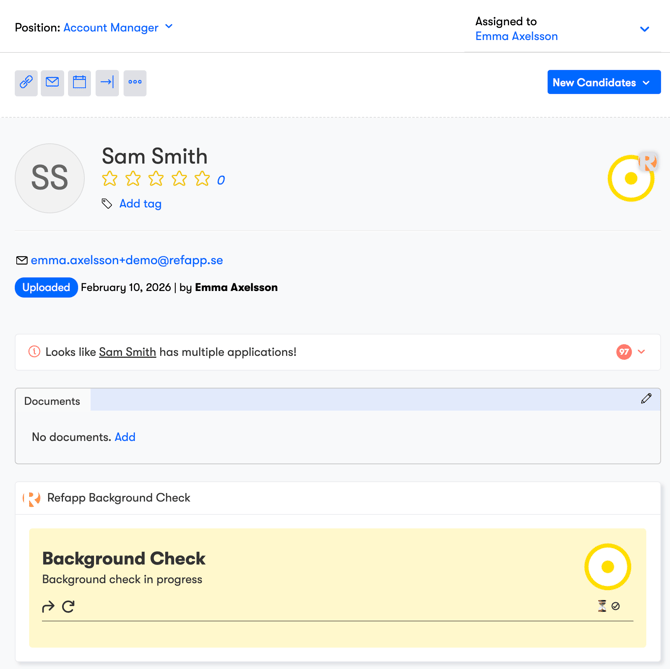
Background check in progress: While the check is ongoing, the status "Background check in progress" is displayed with a yellow indicator.
-
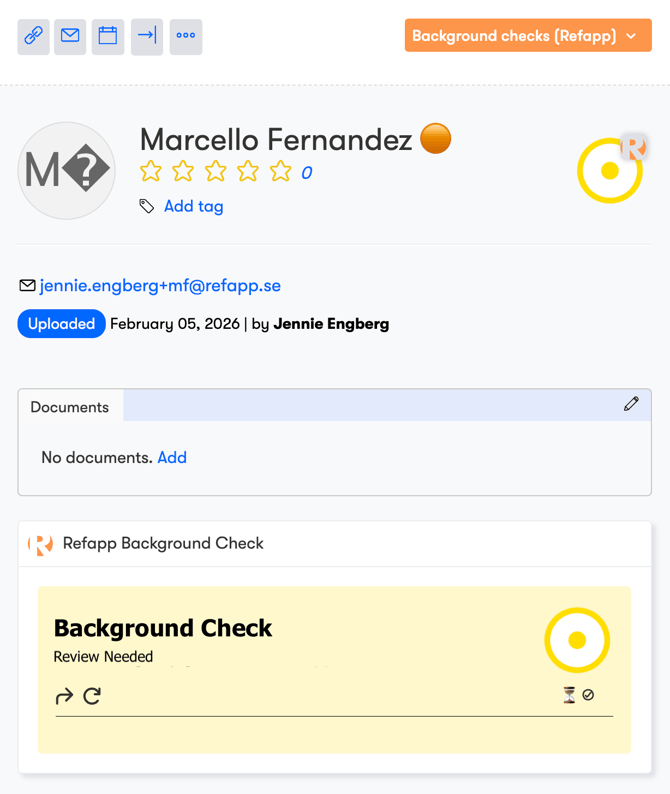
Review Needed: If the system flags something that requires your attention, the status changes to "Review Needed" You can then click through to Refapp to see detailed activity and history.
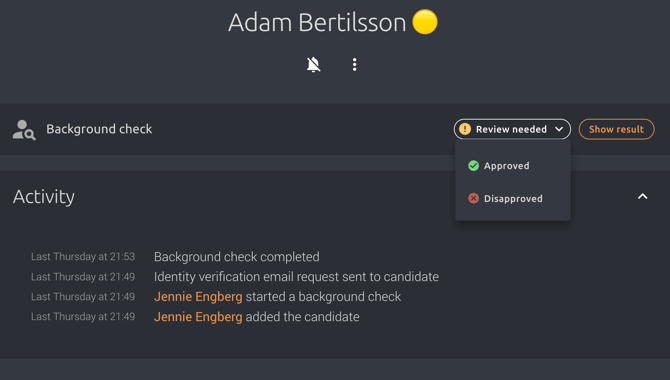
- View results: Access the full reference report via the View Results button. You can then determine if the background check is approved or not by changing the status under "Needs review."
💡 This step is linked to extended permissions for reviewing background checks. If you cannot adjust the status or make a decision, it is due to your access level in Refapp.
⚠️ Missing permissions?
If you cannot change the status, approve, or reject a background check, you likely lack the necessary permissions in Refapp. Contact your Refapp administrator or Refapp support for assistance!
5. Results and Automated Handling
When the check is completed, a result is generated in the form of a score (either 1 or 100). The result is color-coded in Jobylon for a quick overview.
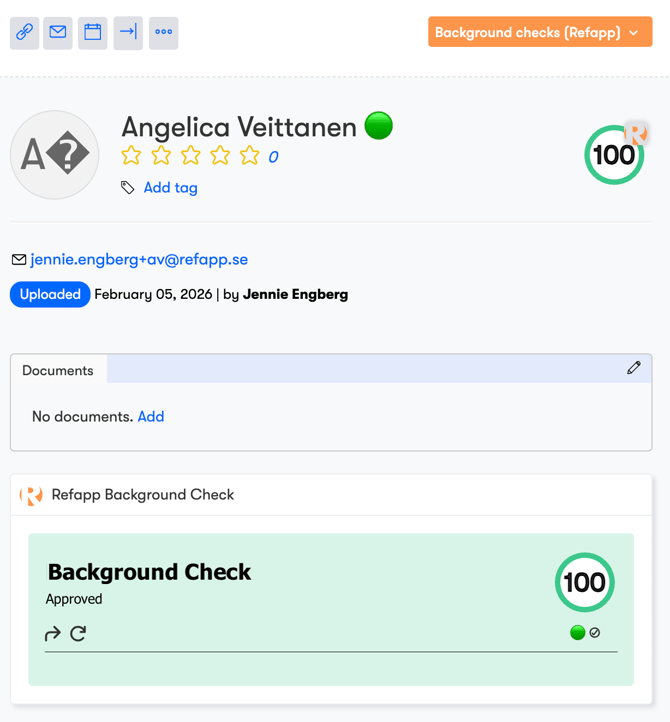
Approved Check (Green Status)
If the candidate receives a high score (100), the background check is marked as Approved.
-
If you have set up a "Pipeline Action" for approved results, the candidate will now be automatically moved to the desired stage.
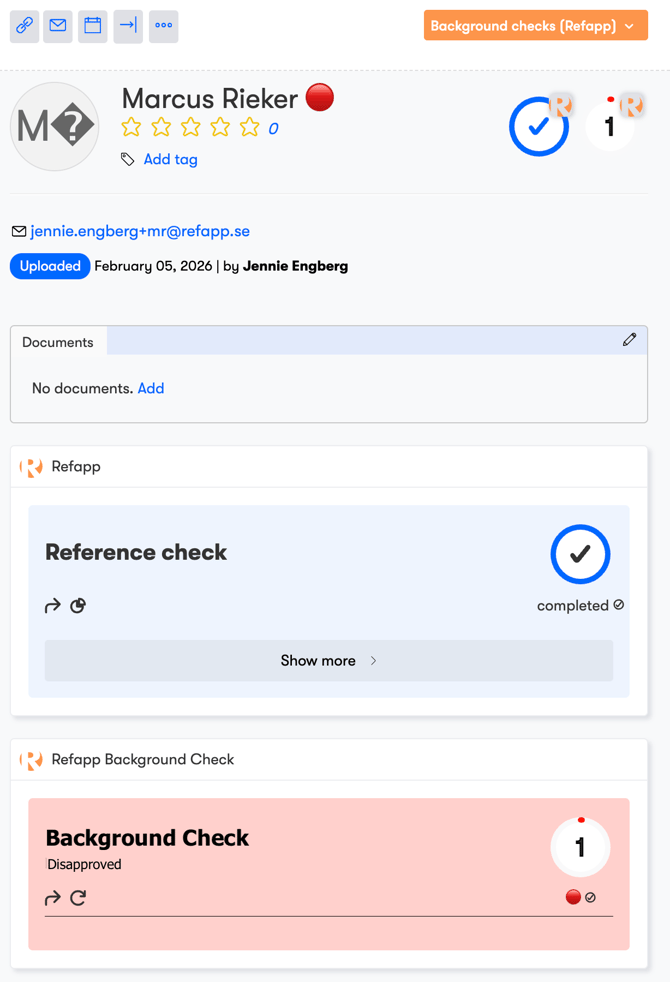
Disapproved Check (Red Status)
If the check results in a low score (1), it is marked as Disapproved.
- If you have set up a "Pipeline Action" for non-approved results, the candidate will now be automatically moved to the desired stage.
6. Manage the Candidate Manually
If you prefer not to use automation, you can manually control both activation and the next steps.
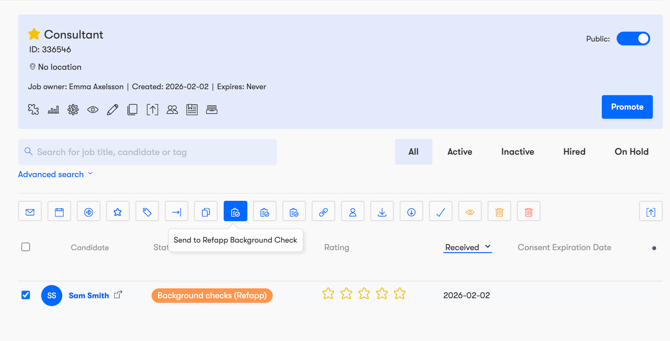
- Activate background check: In the candidate list, select the candidates you want to send for a background check and choose the option "Send to Refapp Background Check."
- The background check will then be activated, and the candidates will be asked to provide consent for the next step in the process.
🙋♀️ FAQ
Why can't I approve or reject a background check?
Reviewing and making decisions on background checks requires specific permissions in Refapp. If you lack these permissions, you can see the status and results but cannot change the decision.
Solution:
-
Contact your internal Refapp administrator or reach out to Refapp support.
What does the "Needs review" status mean?
The status "Needs review" means the background check is complete, but the results require a manual walkthrough. Click View Results to read the report in Refapp and make a decision.
💡 Note that "Needs review" does not automatically mean the check failed; it simply means there is information for you to evaluate, such as professional licenses or discrepancies that require context.
Where can I see the full report?
The full report is displayed in Refapp. Click View Results from the candidate view in Jobylon to open the report and see detailed history and activity.
Do you have any questions or need help with your settings?
Contact us at support@refapp.com