
With Refapp's @JobDescription placeholder, you can automatically display the job description from your project directly in your reference forms.
Add the Job Description to your form
To display the job description in a questionnaire, you need to update the Form in your project and make sure that the @JobDescription placeholder is added.
Remember that you need an access level of Standard permission or higher to add new questions in Refapp. Read more about permissions here.
- Open your questionnaire.
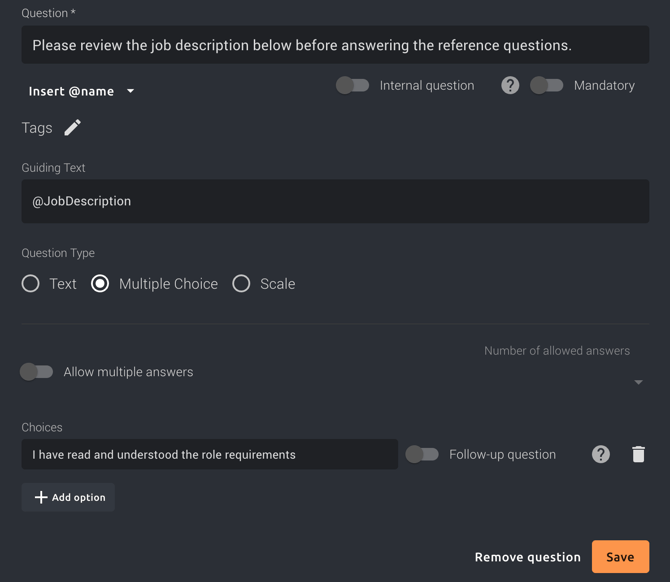
- Add a new question where you would like the job description to appear.
- Enter a question for example, Please review the job description below before answering the reference questions.
- Insert @JobDescription where you want the description to be added.
💡 A tip is to add it in the Guiding Text field. - If you'd like, you can add a confirmation option such as, I have read and understood the role requirements.
- Save the question and the questionnaire.
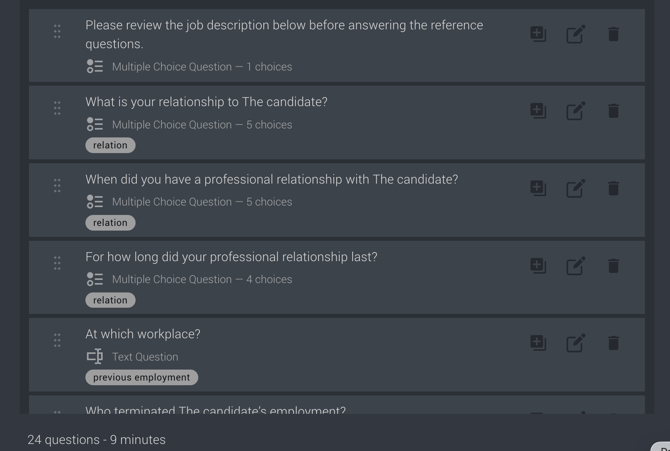
If you're creating a universal question that can be reused across different projects in your organization, we recommend adding a Tag to the question. This makes it easier to search for and find later in the FAQ-bank, helping maintain consistency and reducing the need to create duplicate questions.
If you want to know more on how to tag questions, follow this guide.
A common use case is to place the job description at the beginning of the questionnaire and ask referees to review it before answering the reference questions.
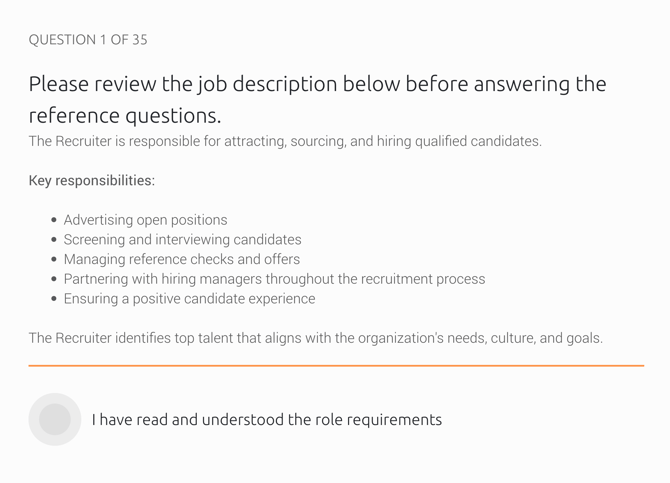
When a referee opens the questionnaire, Refapp automatically replaces @JobDescription with the job description stored on the project.
Add a Job Description to your project
The @JobDescription placeholder in the form retrieves its content from the project.
- Open your project.
- Scroll down to the bottom and locate the Job description field.

- Enter or paste the job description. For best results, use a clear and easy-to-read description with key responsibilities and requirements.
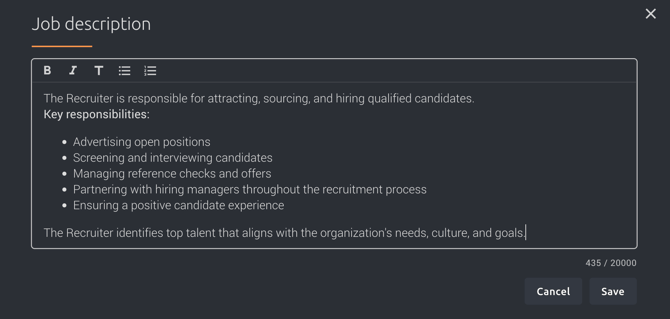
- Click Save.
Tip: If you're using Teamtailor with an API token configured, or creating projects through AI Assist, the job description may be populated automatically.
What will my referees see?
When a referee opens the questionnaire, the job description will be displayed in the form, giving them context before they answer questions about the candidate.
Important notes 💡
- The @JobDescription placeholder works similarly to other placeholders such as @Position and @Client.
- If the job title or hiring company is hidden from referees, the job description will not be shown. Don't use this feature if the title should be hidden.
- If no job description has been added to the project, no content will be displayed, only the question. Don't use this feature if the title should be hidden.
If you need help adding job descriptions to your forms or would like guidance on best practices, please contact us at support@refapp.com