
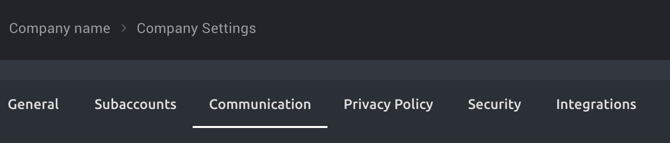
As an administrator, you can manage your organisation's communication settings under Company Settings > Communications. These settings allow you to control which verification options are available, how Refapp communicates with candidates and referees, and when certain communication and phone-call activities are available.
How do I access the Communication settings?
- Go to Company Settings.
- Select Communications.
- Update the settings you want to change.
- Click Save.
Below, you can find some recommendations for settings that are worth reviewing under Communications.
Verification choices for projects
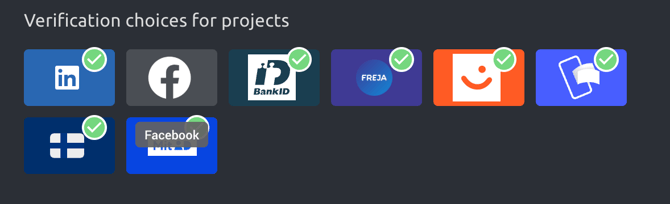
Under Verification choices for projects, you can choose which verification methods should be available when setting up projects in your organisation.
The verification methods with a green checkmark are enabled.
-
To change your verification choices, select or deselect the verification methods you want to make available.
-
Click Save.
How do I control the “I would rather be called” link in SMS messages?
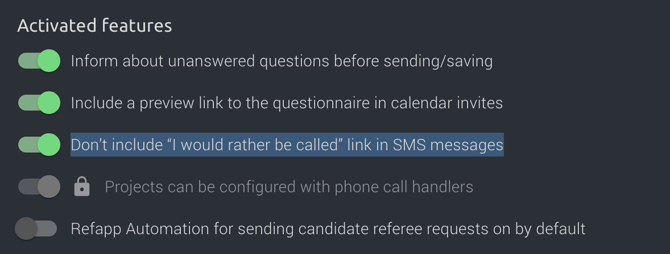
This setting controls whether the “I would rather be called” link is included in SMS messages sent to referees.
When enabled, the link will not be included in SMS messages.
- To exclude the “I would rather be called” link, enable the setting.
- To allow referees to request a phone call via SMS, disable the setting.
- Click Save.
Refapp Automation for sending candidate referee requests
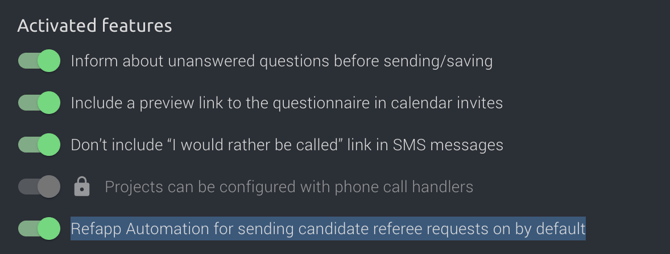
This setting controls whether Refapp Automation is enabled by default when sending candidate referee requests.
When enabled, Refapp Automation will automatically be activated for new projects.
- To enable Refapp Automation by default, turn on the setting.
- To disable it, turn off the setting.
- Click Save.
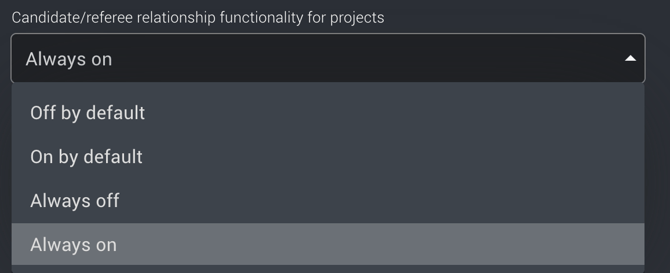
Candidate/referee relationship functionality for projects
This setting controls how the candidate/referee relationship functionality is used in projects.
You can choose the preferred option from the dropdown menu.
- Select the option you want to use from the dropdown menu. The available options include:
- Always on — the functionality is enabled by default for all projects.
- Optional — the functionality can be turned on or off per project.
- Always off — the functionality is disabled for all projects.
- Click Save.
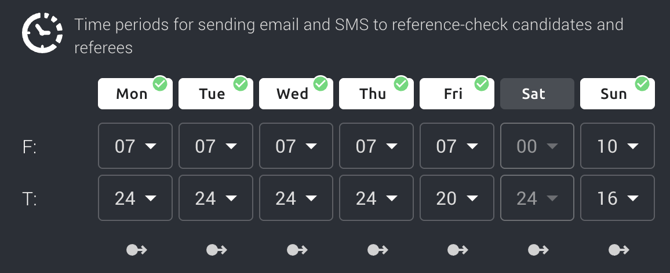
Time periods for sending email and SMS
You can define when Refapp is allowed to send emails and SMS messages to candidates and referees.
You can define different communication hours for each day of the week.
- To change the communication hours, select the desired From and To times for each day.
- To prevent communication from being sent on a specific day, add the day under Days to not send out any communication.
- Click Save.
This allows you to control when automated communication can be sent and avoid sending messages outside your preferred communication hours.
How do I set the time periods for referees to propose call time slots?
If phone calls are part of your reference-check process, you can define when referees are allowed to propose time slots for a call. For each day, you can set the available From and To times.
To configure these settings:
- To change the available hours, select the desired From and To times for each day.
- Click Save.
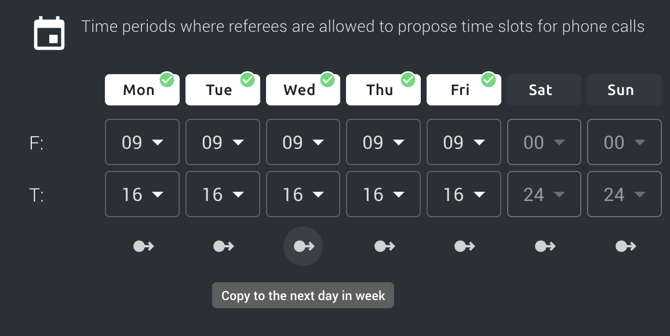
Note: The time periods for sending emails and SMS are separate from the time periods available for proposed calls.