
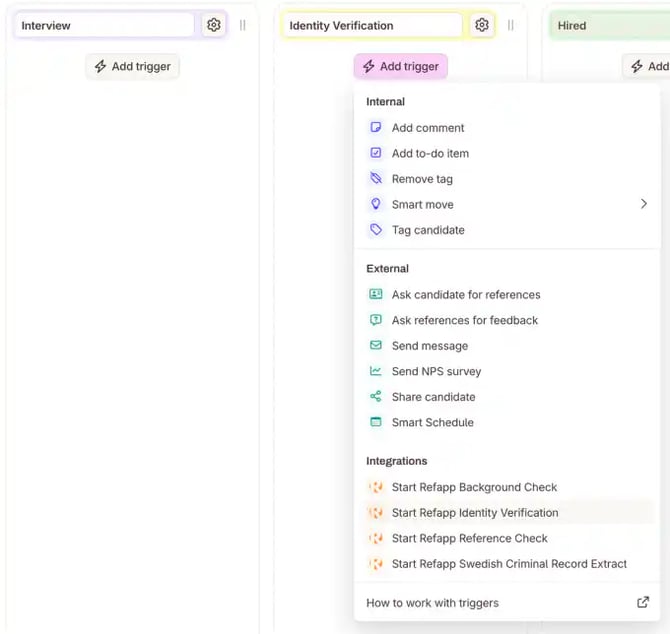
In Teamtailor, add the trigger Start Refapp Identity Verification to the stage where candidates verify their identity.
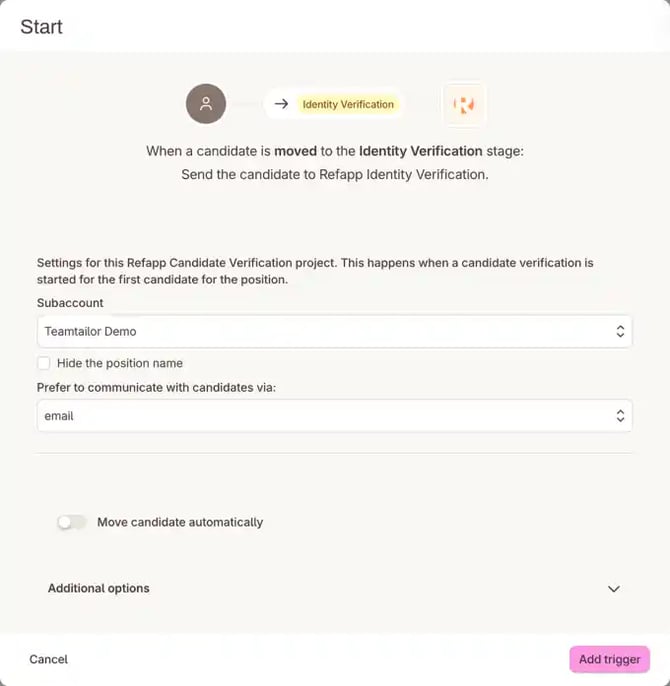
The first time you add the trigger to a job, you choose the Refapp settings for the job. Depending on how your account is set up, you choose a project template, or you choose yourself whether the candidate gets the request by email, SMS or both. Refapp creates a project for the job with these settings.
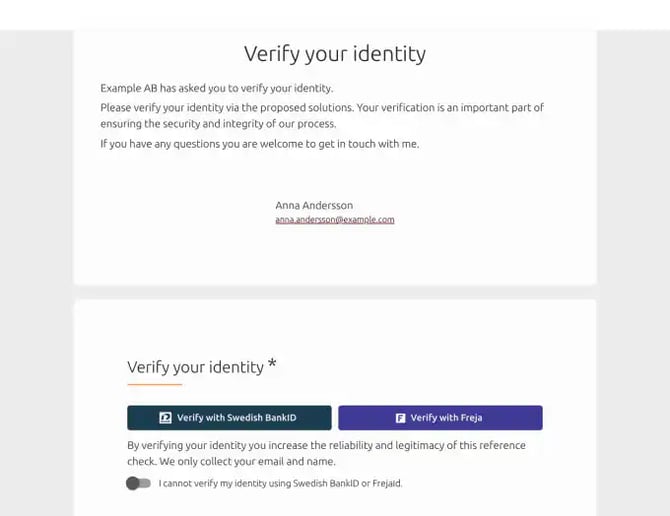
When you move a candidate to the stage, Refapp sends a request to the candidate right away. The candidate opens the link and verifies their identity with an electronic ID, for example BankID. The candidate can also decline.
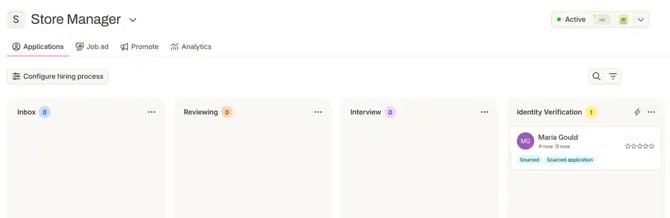
A status box shows on the candidate in Teamtailor. It tells you whether the candidate has verified their identity:
- Waiting for the candidate to verify their identity: the request is sent.
- Identity verified: the candidate has verified their identity and the name matches.
- Identity verified, but the verified name differs from the stated name: review the name in Refapp.
- Identity verified, the name difference was accepted: a recruiter has accepted the name difference in Refapp.
- The candidate declined to verify their identity: the candidate chose not to verify.
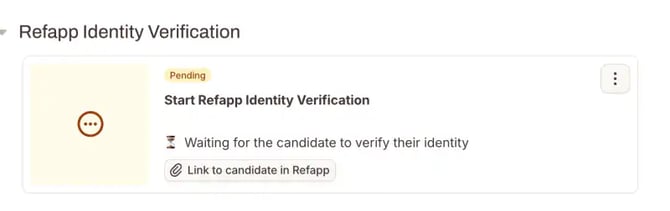
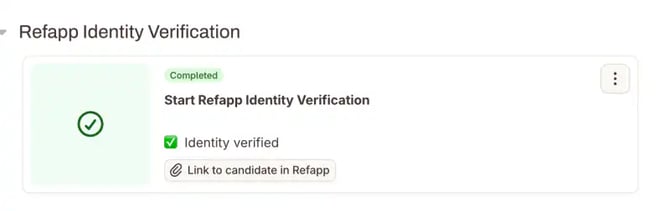
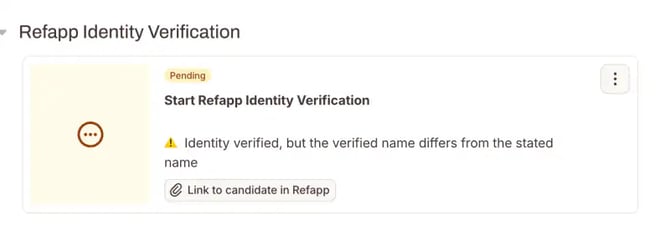
Click Link to candidate in Refapp to see which electronic ID the candidate used and which name was verified. Teamtailor does not show this information.
If the request cannot be sent, Teamtailor shows an error message. The most common ones are:
- The candidate has no email address or phone number to send the verification request to: add an email address or phone number in Teamtailor and move the candidate again.
- No candidate verification method is enabled for this project: choose at least one electronic ID under Security and Integrity in the project or project template in Refapp.
- The communication settings of this project allow neither email nor SMS to the candidate: choose email, SMS or both in the project or project template in Refapp.